How to Download Your Etsy CSV
Follow these 5 steps to export your Etsy listings — Postia uses this file to automatically generate Pinterest pins for all your products.
Quick path
Shop Manager → Settings → Options → Download Data → Download CSV
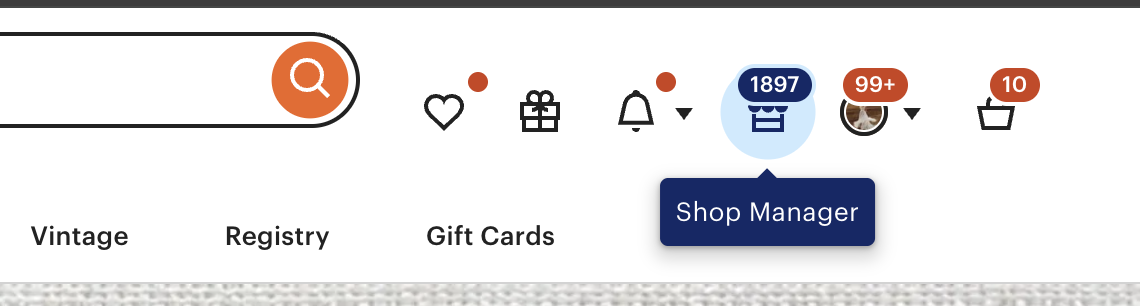
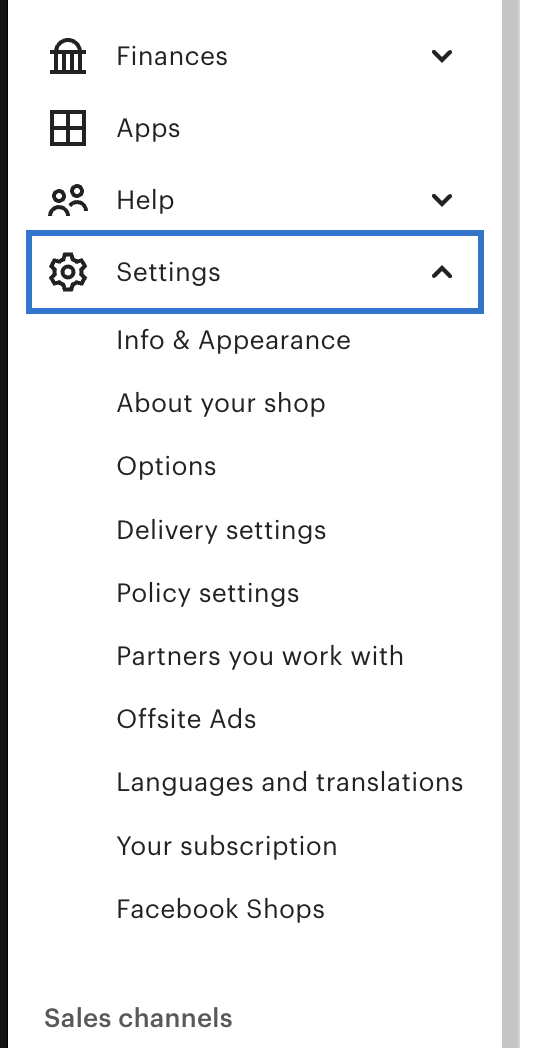
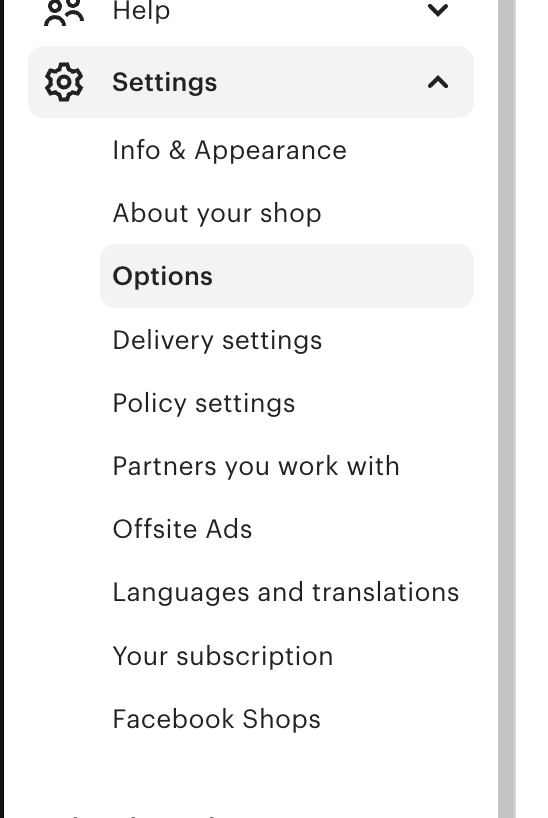

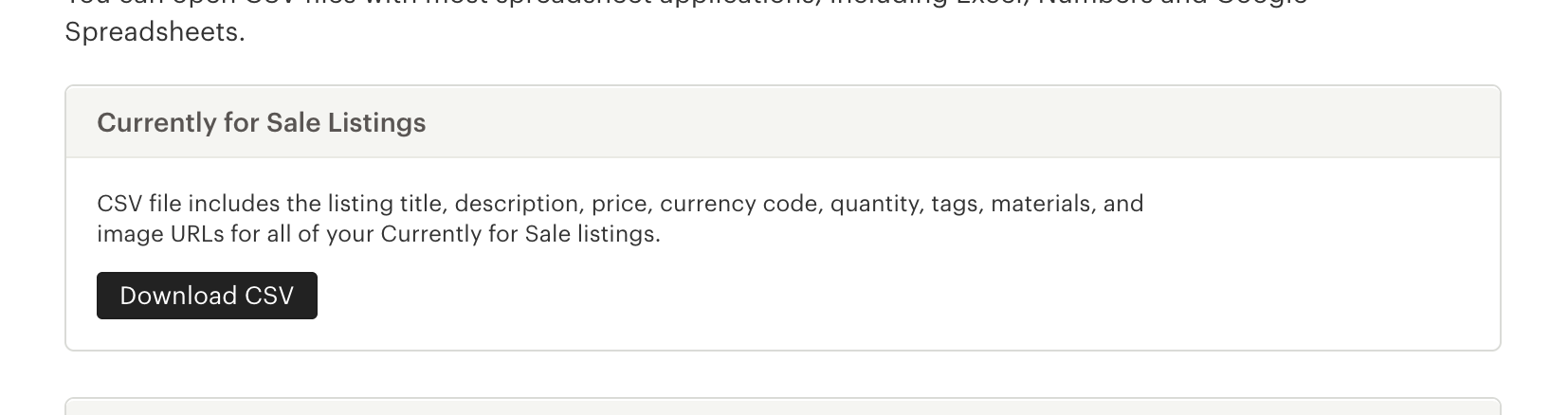
Got your CSV? Let's go!
Head back to Quick Pins and drag your downloaded CSV file into the upload box.
Upload My CSV →Common Questions
I don't see a "Download Data" tab. What should I do? +
Make sure you're using a desktop browser (not mobile) as Etsy's Shop Manager works best on desktop. Double-check you're in Settings → Options — the tabs (Options, Holiday Mode, Web Analytics, Download Data, Close Shop) appear at the top of the page.
My CSV uploaded but some products are missing images. Why? +
Etsy's CSV includes image URLs for your listings. Postia will use these to pull in your product photos. If images are missing, it may mean those listings don't have photos yet, or the image URLs have expired — try re-downloading a fresh CSV from Etsy.
Do I need to re-upload my CSV every time I use Postia? +
No — your products are saved in your Postia library after the first import. Just re-upload when you add new products to your Etsy shop or want to refresh your listings.
Should I open the CSV in Excel before uploading? +
No — upload the file exactly as downloaded from Etsy. Opening and saving it in Excel or Numbers can change the formatting and cause import errors. Just find the .csv file in your Downloads folder and upload it directly.